When IT teams need to troubleshoot issues, guide users through configurations, or provide hands-on support without disrupting active work, Remote Desktop shadowing becomes an incredibly useful capability. Unlike a standard RDP login that disconnects the local user, session shadowing allows administrators to view or control an active Windows session in real time. In this guide, the experts Nuventure walk through how to securely configure and use Windows RDP shadow sessions, including the required permissions, Group Policy settings, registry configurations, and command-line options needed for seamless remote assistance.
Remote Desktop Protocol is a proprietary protocol developed by Microsoft which provides a user with a graphical interface to connect to another computer over a network connection.
It is the most commonly used protocol for accessing Windows operating systems remotely. But by default, this comes with a downside. Whenever a user connects to a Windows operating system through RDP, the session of a user working locally is knocked out even if we enable multiple concurrent RDP sessions in Windows. This feature is used by administrators to connect to user sessions and provide Remote Assistance.
To connect to a user session remotely using shadowing, the following should be satisfied…
1. Connecting account must have the Administrator permissions.
2. RDP should be enabled on remote Windows system.
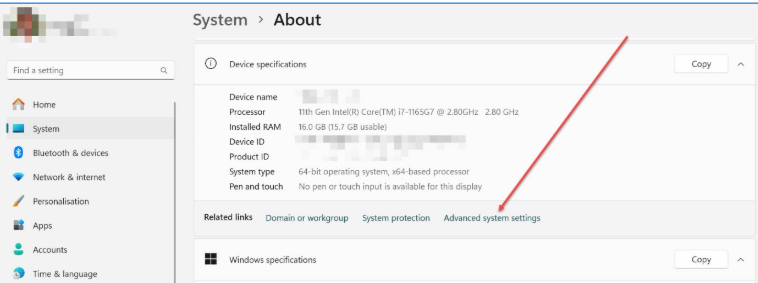
This can be enabled by going to Control Panel ⇾ System ⇾ About ⇾ Device specifications ⇾ Advanced system settings
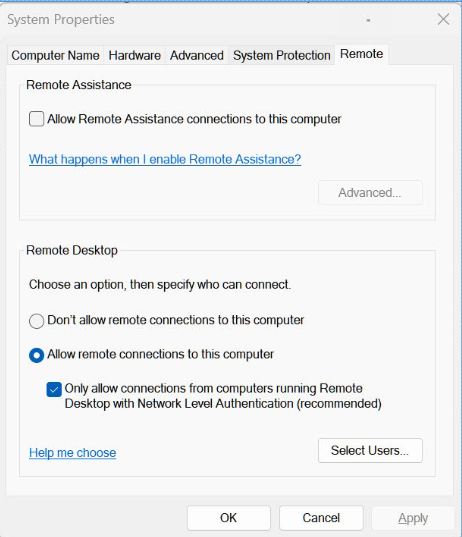
In the System Properties window, goto ⇾ Remote ⇾ Remote Desktop, and select Allow remote connections to this computer
3. RPC service should be enabled on the source Windows machine. This is because the Shadowing feature uses a random TCP port from high RPC range, instead of the regular RDP port 3389. To check if you have RPC service enabled, you may go to Windows Services (services.msc)
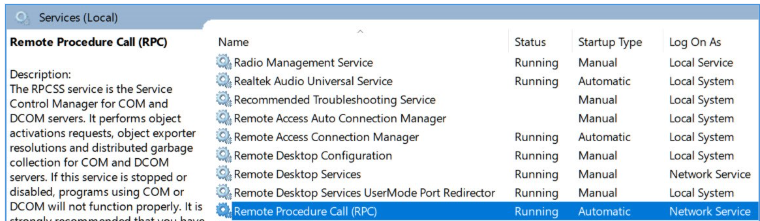
4. Finally, the Shadowing feature must be enabled in Group Policy or Registry:-
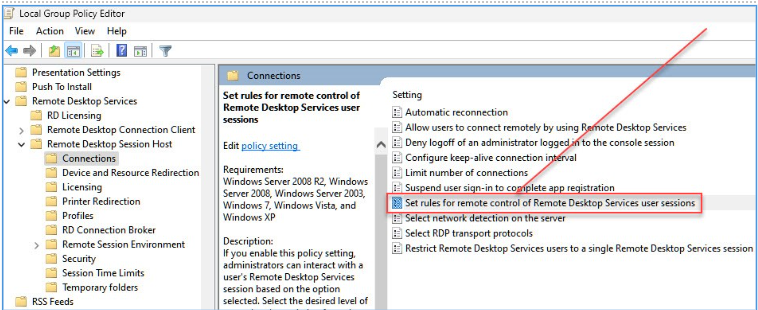
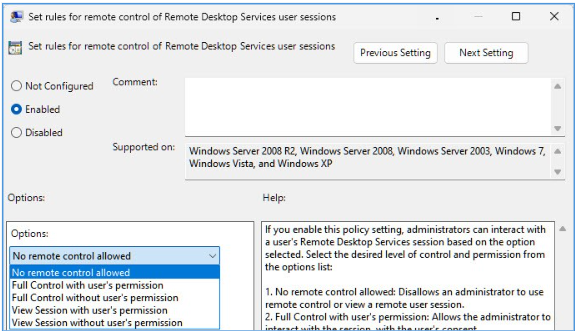
If we would like to configure this via Group Policy, open the Group Policy Editor(gpedit.msc), and go to Computer Configuration ⇾ Administrative Templates ⇾ Windows components ⇾ Remote Desktop Services ⇾ Remote Desktop Session Host ⇾ Connections ⇾ Set rules for remote control of Remote Desktop Services user sessions. Select the radio button “Enabled”, and then select any of the following options…
⬩ Full Control with user’s permission
⬩ Full Control without user’s permission
⬩ View Session with user’s permission
⬩ View Session without user’s permission
OR
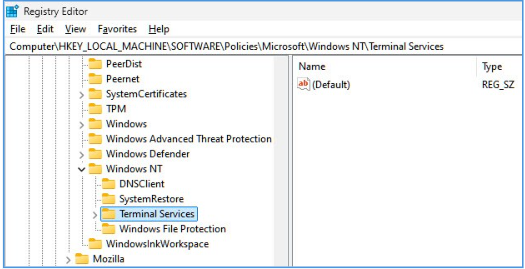
If we would like to configure this via Registry, go to HKEY_LOCAL_MACHINE\ SOFTWARE\Policies\Microsoft\Windows NT\Terminal Services, and create a DWORD data type with any of the following as value
⬩ 1 ⇒ Full Control with user’s permission
⬩ 2 ⇒ Full Control without user’s permission
⬩ 3 ⇒ View Session with user’s permission
⬩ 4 ⇒ View Session without user’s permission
5. Finally, in order to establish shadow connection to a user session, we must use the standard RDP tool mstsc.exe. The command syntax will be as following:-
cmd> mstsc /shadow:<Session ID> /v:<Computer name or IP address>
NOTE: You may also use any of the following options:-
/prompt – request a user credentials to connect. If not specified, we will be connected with the current user credentials
/control – the mode that allows to interact with the user session. If the parameter is not set, we will be connected to a user session in a view only mode
/noConsentPrompt – allows not to prompt the user for confirmation to connect to a session
Example:
cmd> mstsc /shadow:1 /v:192.168.32.10 /prompt
Done
Whether you are managing enterprise IT infrastructure, supporting remote employees, or maintaining critical Windows environments, having the ability to shadow RDP sessions can significantly improve response times and troubleshooting efficiency. Nuventure helps organizations build reliable, secure, and scalable IT operations through expert managed services, infrastructure support, and cloud solutions. Get in touch with the team to streamline your remote administration and enterprise support workflows.